
iSyncr: iTunes to Android
JRT Studio Music PlayersMusic & Audio
4.11.97K Reviews
- Version
- 7.0.5
- Installs
- 5.00M
- Age Rating
- Everyone
Screenshots

Our Review of iSyncr: iTunes to Android
 Analysis by Appyee
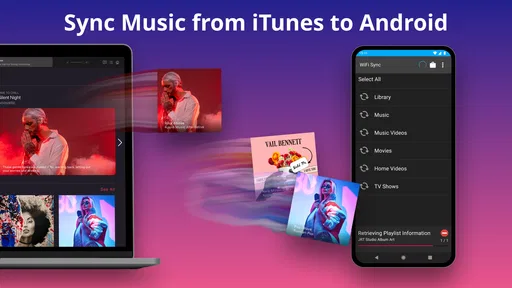
I first think about iSyncr: iTunes to Android when someone wants to keep an existing iTunes collection after moving to an Android phone. That is a more specific job than simply playing music: the app is meant to carry a familiar library across, including the playlists and listening details that make a collection feel personal. If your tracks already live in iTunes and you want them available on Android, that focus is useful. If you mainly stream music, or are starting a new library from scratch, the extra syncing step may not be worth it.
Getting the connection right
First things first, getting iSyncr set up was a breeze. I downloaded the app from the Google Play Store, and it didn’t take up much space on my phone, which is always a plus. After the installation was complete, I was met with a clean and intuitive interface that made navigation a piece of cake.
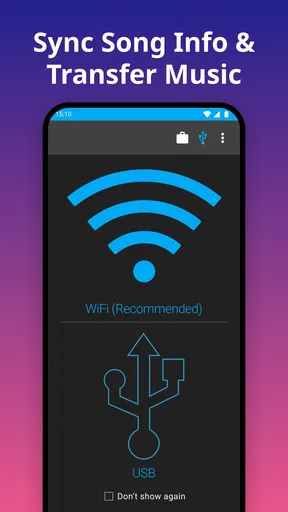
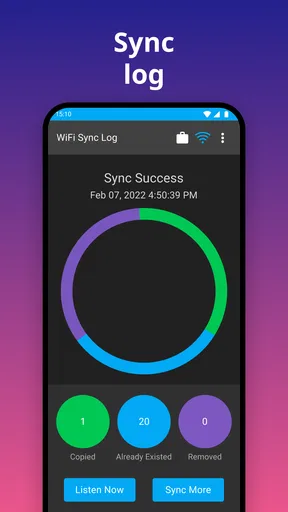
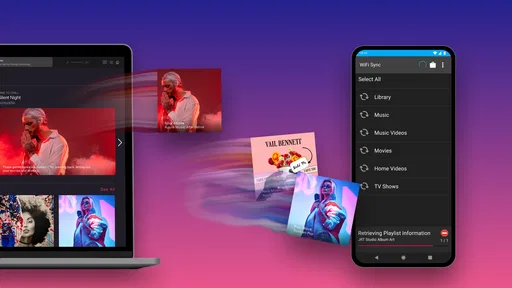
The app works by syncing your iTunes library to your Android device over Wi-Fi or USB. I went the Wi-Fi route because, let's be honest, who wants to deal with cables anymore? The app guided me through connecting my phone and computer on the same network. Easy peasy!
Where a first sync can get stuck
The convenience of wireless transfer depends on the phone and computer being able to find each other. If a connection does not appear, I would check the simple things before restarting the whole process: confirm both devices are on the same Wi-Fi network, keep them awake while setting up, and make sure the computer with the iTunes library is available. A guest network or a connection that isolates devices can make two devices seem connected to Wi-Fi while still preventing them from communicating.
USB is a practical alternative when wireless discovery is unreliable or when I want a more direct connection. It does mean handling a cable and checking that the phone is connected in a way the computer can use, but it can be less confusing than troubleshooting a network. I would choose one method for an initial transfer and avoid changing several settings at once; that makes it easier to tell whether the connection itself is the problem.
Make the library easier to manage
Before syncing a large collection, I find it helpful to tidy the source library first. Clear playlist names and sensible organization make it easier to choose what belongs on a phone, especially if the computer holds years of albums, podcasts, and one-off tracks. Starting with a smaller set of music is also a useful way to check that the connection and destination are behaving as expected before committing to a broader transfer.
That smaller first pass is not just about speed. It gives me a chance to check whether the albums and playlists I care about appear in the way I expect, and whether the receiving music player can find them. If something looks wrong, I can narrow the cause to a playlist, a particular track, or the connection rather than sorting through the entire library at once. For anyone moving a collection they have carefully maintained, that is a much calmer workflow than trying to fix everything after one large transfer.
Syncing like a pro
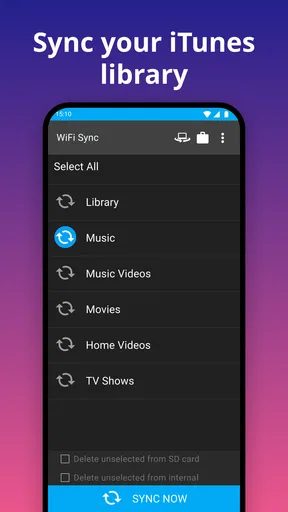
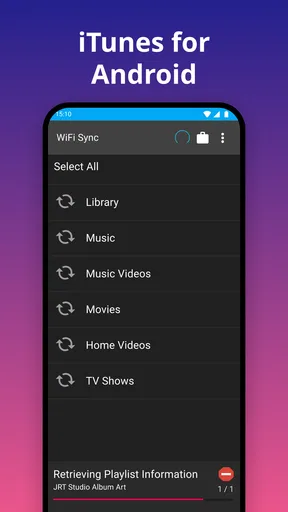
Once the setup was done, I was eager to get my tunes flowing. I loved how seamlessly iSyncr synced playlists, music, and even podcasts from iTunes to my Android. It felt like magic watching my playlists appear on my phone just as they were on my computer. The sync process was pretty swift, and I didn’t notice any hiccups or glitches.
One feature that really stood out was the ability to sync ratings, play counts, and even last played dates. As someone who meticulously organizes my music, these little details made a big difference. It was like having my entire iTunes universe mirrored on my phone.
When a transfer needs a second look
If a playlist or track does not show up as expected, I would first check the source in iTunes and confirm that the item is actually part of the library or playlist I meant to transfer. Then I would reconnect and run the sync again, rather than immediately deleting files or rebuilding playlists. For a collection that changes often, it is worth treating the computer library as the place where I make edits, then using a fresh sync to bring those changes across.
There is a useful distinction between transferring music and playing it. iSyncr’s role is to move and maintain the library on the Android device; the app I use to listen is a separate choice. If a track is present on the phone but does not appear in a particular player, I would check that player’s library view or refresh its music list before assuming the transfer failed. Trying another player can help identify whether the issue is with playback organization rather than the sync itself.
Jamming on the go
With my music now on my Android, I was ready to hit the road. I tested the app with my car's Bluetooth and a couple of different music players on my phone. The transition was smooth, and my music played without a hitch. No more missing tracks or incomplete albums!
Plus, I found it super convenient that I could continue to update my iTunes library on my computer and effortlessly sync any changes to my phone. It all happened in the background, so I didn't have to lift a finger. Talk about hassle-free!
A realistic routine for me would be to update a few playlists at home, connect to the computer before heading out, and sync only the music I expect to need. For example, I might refresh a commute playlist and a longer album for a trip, then test playback before leaving. That small check matters when I am relying on music away from home: a playlist appearing in the library is reassuring, but hearing a track start confirms the listening app can access it too.
What it does better than a streaming-first setup
Compared with a streaming service, this approach suits people who already own or manage music in iTunes and want to keep their own organization. It can be especially appealing if the point is preserving playlists and listening history rather than searching for a replacement version of every album in a streaming catalog. It also makes sense for listeners who prefer a prepared local collection for commutes or places where they do not want to depend on streaming access.
The trade-off is that a library-based workflow asks me to maintain the collection on a computer and sync changes over. A streaming app is usually simpler for discovering unfamiliar music and listening across devices without managing transfers. A basic file-copy method may be enough for someone who only wants a few albums and does not care about playlist continuity or play information. I would pick iSyncr when those library details are the reason for switching, not just because I need any way to put songs on a phone.
It is also not the right fit for someone whose music lives entirely in a streaming account, or who wants their Android phone to become the main place where every library change happens. The clearest use case is the person who still treats iTunes on a computer as the organized source and wants the phone to carry a useful copy. Keeping that expectation in mind helps avoid blaming the app for a workflow mismatch.
Who should give it a try
JRT Studio Music Players makes this free music-and-audio app for Android. It has a 4.2 average from around 21,000 ratings, and more than 5 million installs. The app is rated for Everyone, runs on Android 5.0 or later, and its current version is 7.0.5. There are in-app purchases, with listed amounts ranging from $0.99 to $99.99 per item, so I would check the purchase details in the app before deciding whether anything beyond the free option is relevant to me.
For a person with years of playlists, saved ratings, and listening history in iTunes, those details are not cosmetic. They are a way of finding music again without rebuilding a familiar system by hand. For someone who has only a handful of files, copying them directly may be simpler. And if I mostly want new releases, recommendations, and instant access without a computer-based library, a streaming service is likely the more natural choice.
My practical verdict
Overall, iSyncr: iTunes to Android is a fantastic tool for anyone looking to bridge the gap between iTunes and Android. The app is user-friendly, reliable, and does exactly what it promises. It’s a must-have for music lovers who want to keep their iTunes library intact even after switching to Android.
Whether you're a casual listener or a die-hard music aficionado, iSyncr makes the transition seamless and enjoyable. So go on, give it a try, and let your music follow you wherever you go!
Verdict
Strengths of iSyncr: iTunes to Android
- Seamless iTunes library sync
- Supports playlists and ratings
- Syncs over Wi-Fi and USB
- User-friendly interface
- Compatible with most Android devices
Limitations of iSyncr: iTunes to Android
- Limited free version features
- Requires iTunes on PC or Mac
- Occasional sync errors
- No support for Apple Music
- UI feels outdated
Similar Picks in This Category
View All
YouTube Music
Google LLC4.4

Samsung Music
Samsung Electronics Co., Ltd.3.8

Spotify: Music and Podcasts
Spotify AB4.3

JioSaavn - Music & Podcasts
Saavn Media Limited4.3

Lark Player:Music Player & MP3
Lark Player Studio - Music, MP3 & Video Player4.6

StarMaker: Sing Karaoke Songs
SKYWORK AI PTE. LTD.4.3
Frequently Asked Questions
What is iSyncr and how does it work?
iSyncr is an application designed to sync your iTunes library with your Android device effortlessly. It allows for seamless transfer of music, playlists, podcasts, and other media files directly from iTunes to your Android phone or tablet. Users can connect via USB or Wi-Fi to sync their content.
Is iSyncr compatible with all Android devices?
iSyncr is compatible with most Android devices running version 5.0 (Lollipop) and above. However, for the best experience, you should ensure that your device has the latest Android updates. Additionally, iSyncr works well with both Windows and macOS versions of iTunes.
Does iSyncr support two-way syncing?
Yes, iSyncr supports two-way syncing. This means you can not only transfer music from iTunes to your Android device but also sync any changes or new media from your Android back to iTunes. This feature ensures that your music library remains consistent across platforms.
Are there any limitations to the free version of iSyncr?
The free version of iSyncr provides basic syncing capabilities, but it does have limitations on the number of songs you can sync at one time. To unlock full features, including unlimited song syncing and playlist support, users need to purchase the premium version of iSyncr.
How secure is my data when using iSyncr?
iSyncr prioritizes user privacy and data security. The app does not store any personal data on external servers; all transfers occur directly between your Android device and your computer. It's important to ensure your Wi-Fi connection is secure when syncing wirelessly to prevent unauthorized access.
